Introducing Serving Hatch

Orders in a tap.
Food out the hatch.

The order and collection system built for food stalls. Colourful tiles, instant totals, and a collection screen that always knows what’s next. No internet needed.

Bratwurst & Co.
PREPARING
JW65NR52KR42
READY TO COLLECT
GP37DN26KR42
Customer board
New orderLinked
AllSausagesSidesDrinks

Basket

Total£0.00
Charge
Order KR42 sent
Order iPad
Kitchenoldest first
GP376:10

1× Currywurst
2× Chips

KR420:00

2× Bratwurst
1× Chips
1× Coke

Ready
Kitchen screen
Bratwurst & Co.
WelcomeYour order will appear here
YOUR ORDER
TOTAL£0.00
Thank you!Your order number
KR42
Watch the board for your number
Collection
OPEN ORDERS
GP37COOKING
KR42COOKING
JW65COOKING
NR52COOKING
Tap the itemsBig colourful tiles. Two taps for two bratwursts.

Made for the rush

A queue is building.
Your till should be the easy part.

No internet.Two devices talk straight to each other. No Wi-Fi, no signal, no problem.
No training.If you can tap a coloured tile, you can run the till. Staff learn it in a minute.
No mix-ups.Orders show up in the kitchen and at the hatch as the same coloured tiles, with every extra spelled out.

Simple by design

From first tap
to handed over.

No menus to dig through, no screens to learn. Everything you need is one tap away, from the till to the kitchen to the hatch.

Step 1

Tap what they want.

Every item is a big, colourful tile. Tap to add, tap again for another. The basket and total update instantly, so you can read the price out before they’ve finished asking.

✦ Need cheese or no onions? One more tap.
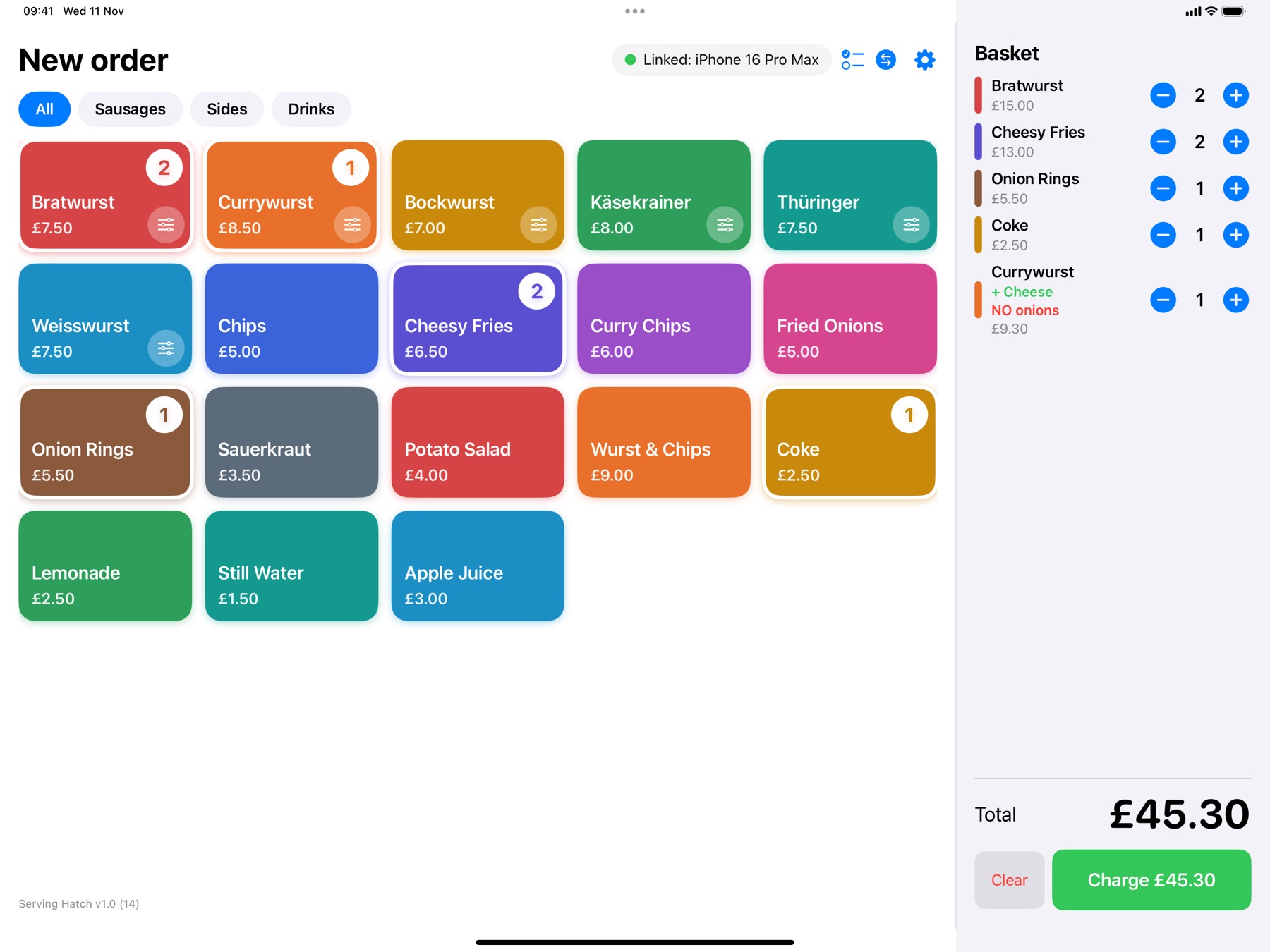
The order screen with items in the basket

Step 2

Take the cash.

A huge total, and one-tap note buttons that round up to the next £5, £10, £20 or £50. The change you owe appears before you reach for the till.

✦ Mistakes happen. Void an order any time.
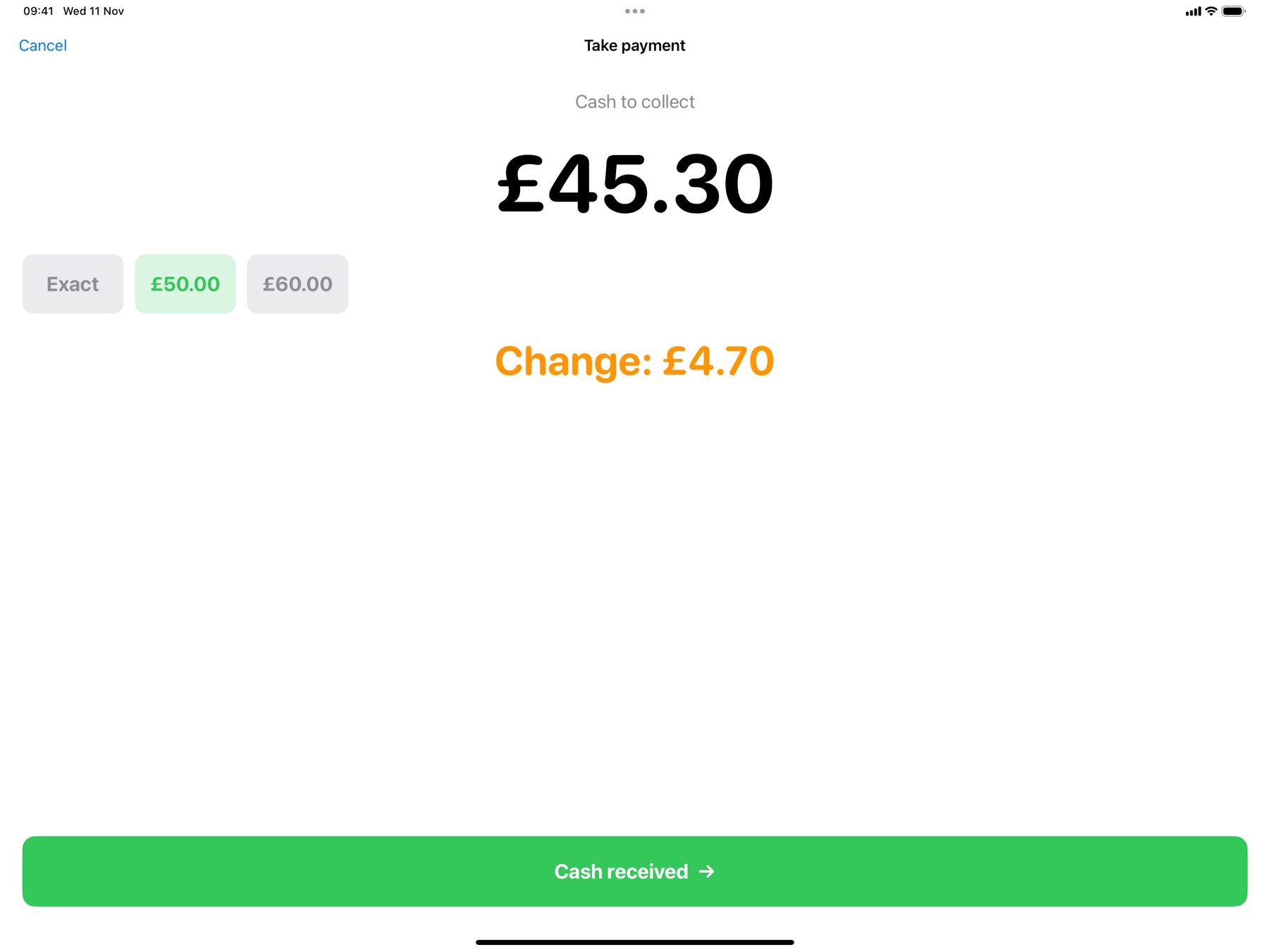
The payment screen showing the total, cash buttons and change due

Step 3 · optional

Cook it.

Add a kitchen screen and every paid order lands there, oldest first, with a timer that turns amber then red. One tap when it’s done and the hatch sees it’s ready.

✦ No kitchen screen? Skip this step. Everything still works.
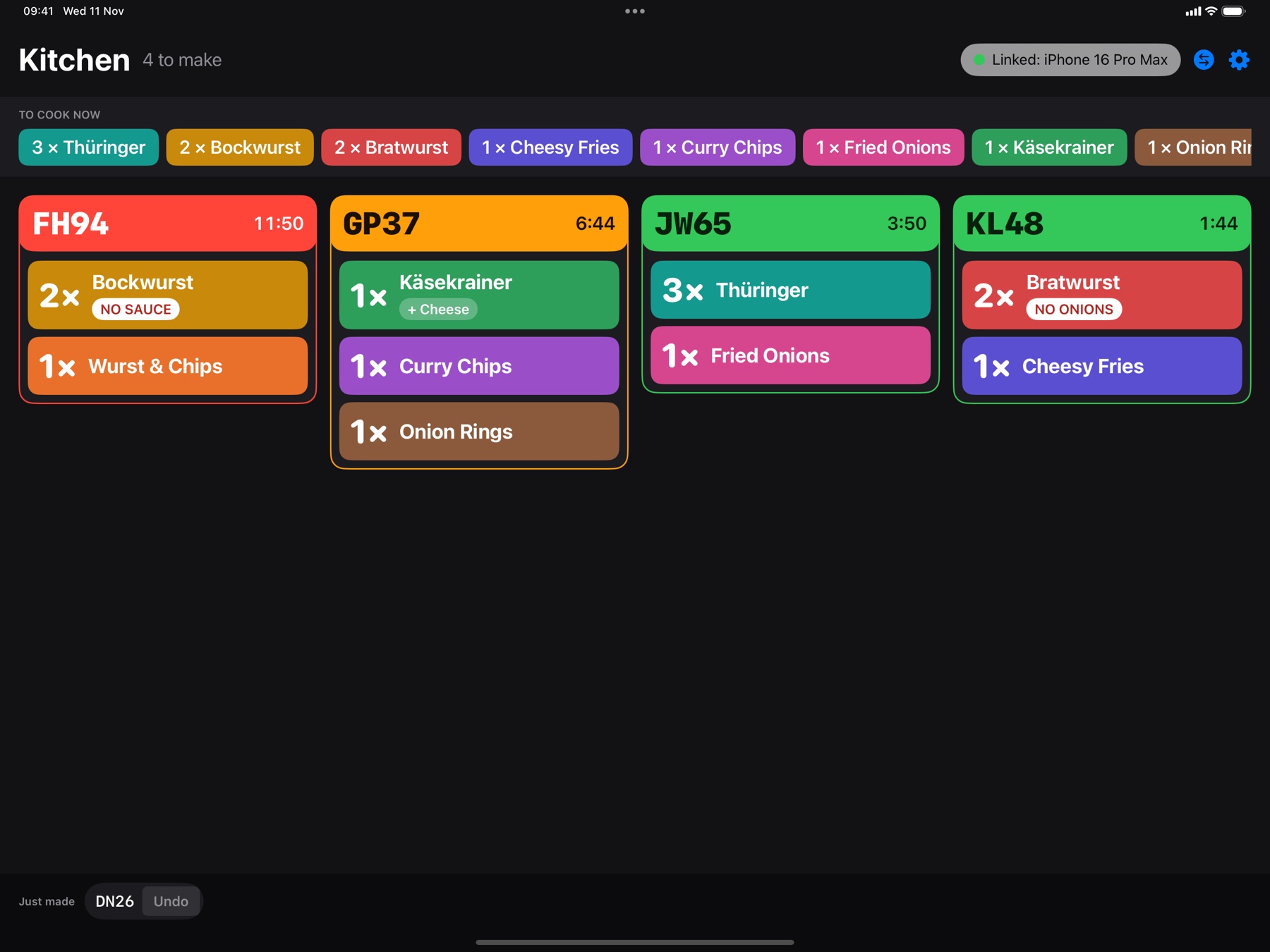
The kitchen screen with order tickets, oldest first, with timers that change colour

Step 4

Hand it over.

The customer gets a receipt with a QR code and a short reference like DN26. At the hatch, scan it or type it, and the whole order appears as the same coloured tiles, marked READY when the kitchen is done, while the customer board calls the number. One tap to mark it handed over.

✦ New orders chime. Completed ones chime differently.
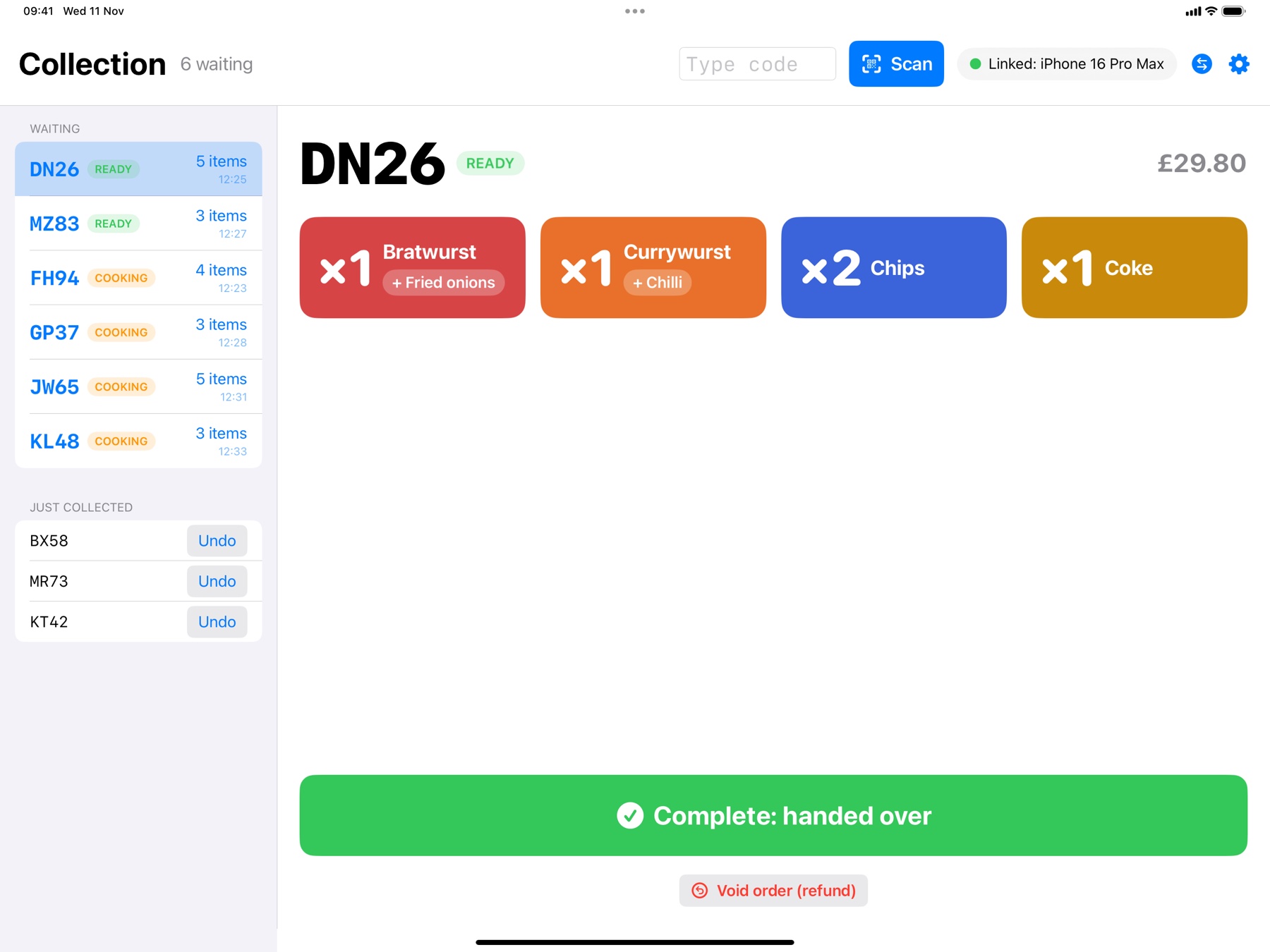
The collection screen showing an order as coloured tiles with a Complete button

Always in sync

One stall.
Every screen in sync.

Take orders on one device, cook on another, hand over on a third. They find each other on their own and stay linked all day, even with no Wi-Fi and no signal.
Order device
1
The order screenWhere the queue meets the till.
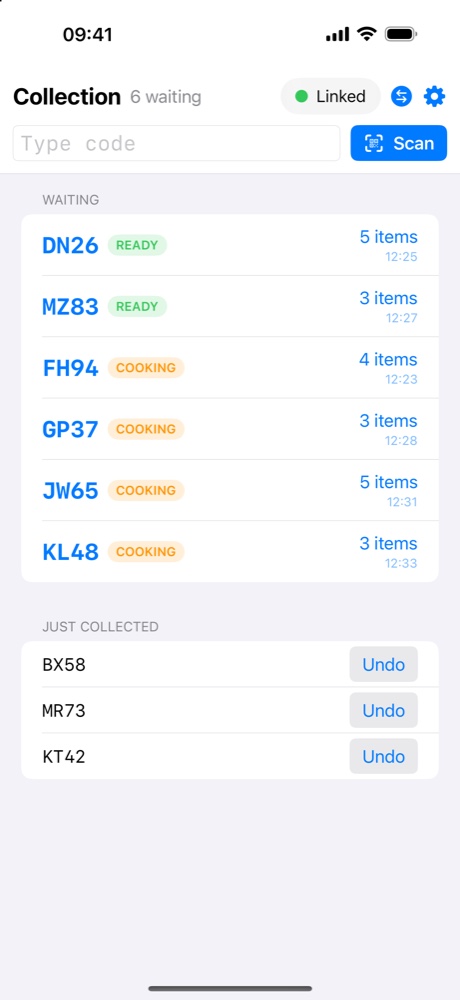
Collection list on an iPhone showing orders marked READY or COOKING
2
The collection screenReady orders rise to the top, marked READY, on an iPhone or iPad.
Works offlineDevices link directly. A dead signal at a festival field is a non-event.
iPad and iPhoneUse what you own. Phone layouts are built properly, not stretched.
Your stall onlySet a stall code so you never link to the stall next door.
Self-healingMove out of range and back, and the link rebuilds itself. Nothing to re-do.

Every screen

Six jobs.
Any iPad or iPhone.

Each device does one job, and you pick it in two taps. Use as many or as few as your stall needs. They all link on their own, with no internet.

New · Kitchen screen

Give the cook a screen.
Not a shouting match.

Every paid order appears on the kitchen screen the moment it’s taken, in the order it came in. Big, clear and impossible to miss, like the screens you’ve seen in the fast-food kitchens.

Kitchen screen showing four order tickets, oldest first, with a cook list along the top
Oldest firstTickets run in the order they arrived, so nothing gets forgotten.
Timers that warn youGreen, then amber, then red as an order waits. You set the times.
A cook list“6 × Bratwurst, 5 × Chips.” Everything to make, added up, for batch cooking.
One tap when doneThe ticket clears and the hatch sees READY. Mis-tapped? Undo is right there.
Drinks skip the kitchenSwitch off “send to kitchen” for a category and it never clutters the screen.
Printed docketsPrefer paper? Print a kitchen docket for each order on a Bluetooth printer.

New · Customer board

Let customers see
their order coming.

A big screen facing your customers shows what’s cooking and what’s ready to collect. They watch for their number instead of crowding the hatch to ask.
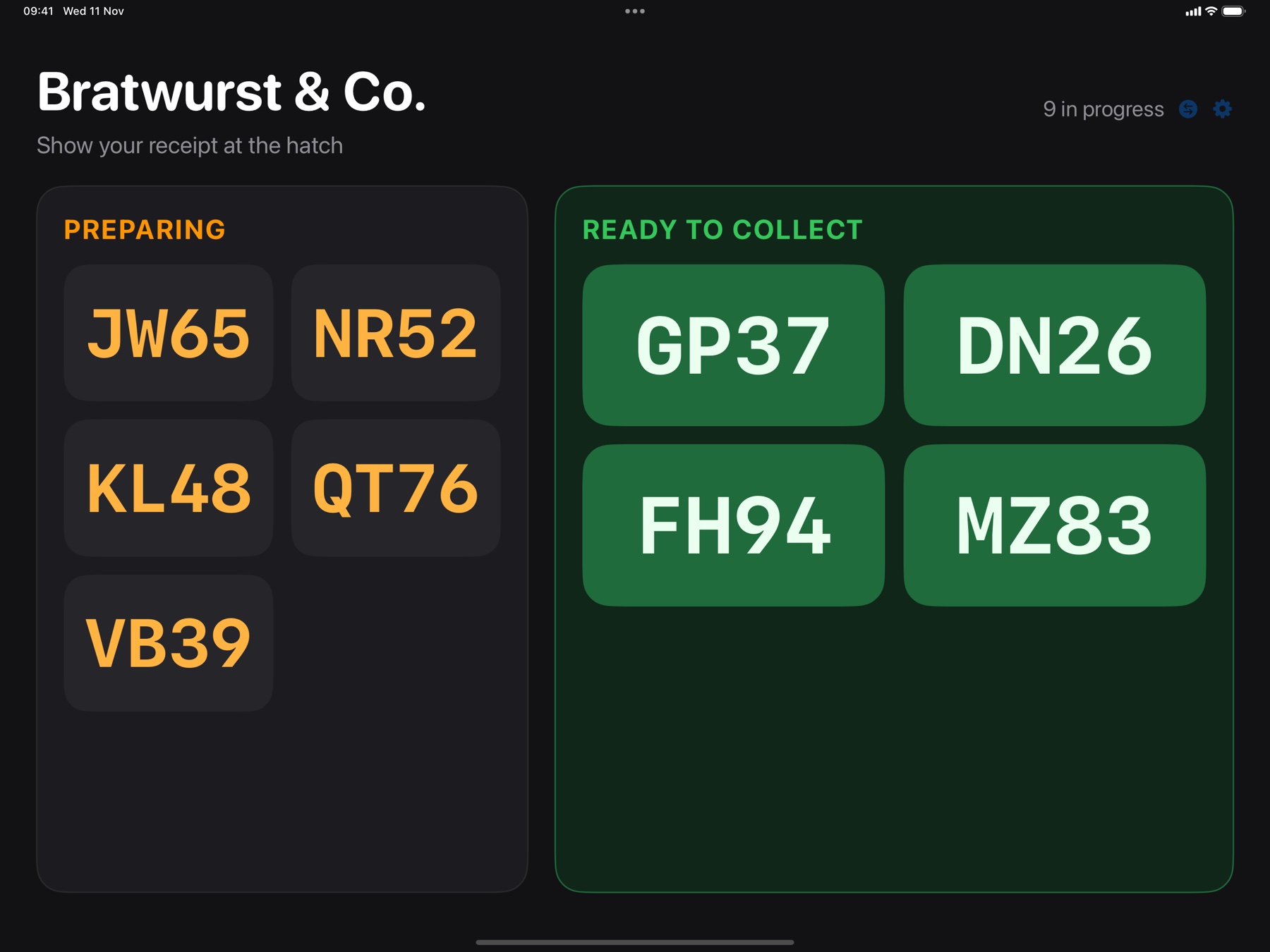
Customer board on an iPad: a Preparing column and a Ready to collect column of order numbers
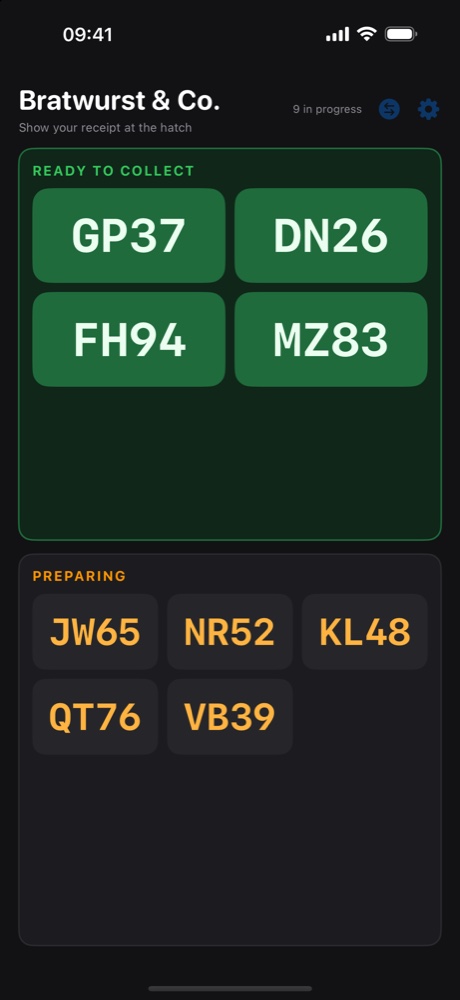
The same customer board on an iPhone held upright
Upright or on its sideThe board rearranges itself for any screen: an iPad, an iPhone, or a TV with an iPad behind it.
A chime when it’s readyA bright sound as each number moves across, and the new one glows so it’s hard to miss.
Your logo and messageShow your own logo and a line like “Show your receipt at the hatch”.
Only order numbersNo names, no prices, nothing private on show. Just the short code on each receipt.
Always up to dateIt updates the moment the kitchen or the hatch marks an order ready, with no refreshing.
No kitchen screen neededWithout one, the hatch taps “Mark ready” and the board does the rest.

New · Till display

Customers see the order
as you ring it in.

Stand a spare iPhone or iPad on the back of the till, facing the customer. Every item appears as you tap it, with the total in big type, so there are no surprises and no “I didn’t ask for that”.
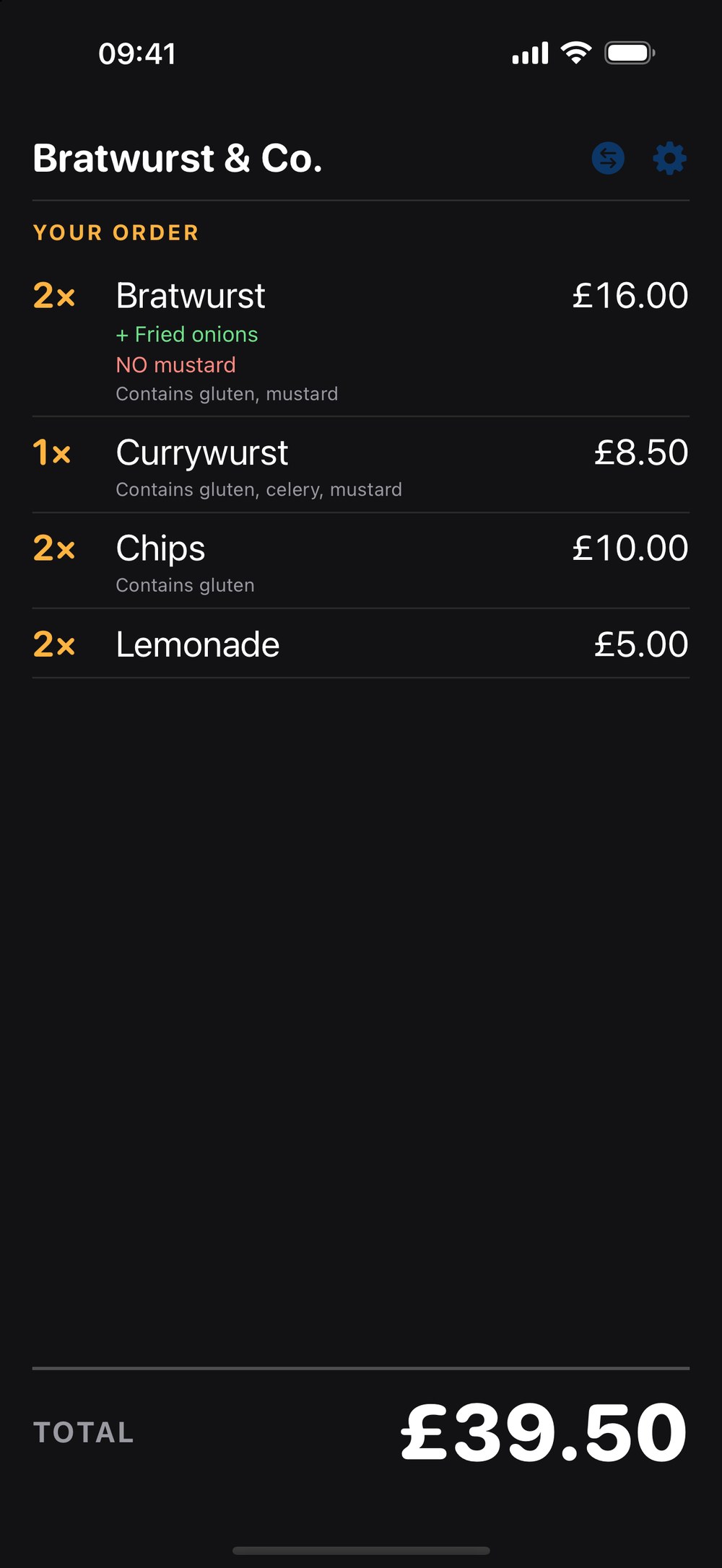
Till display on an iPhone: two bratwursts with fried onions and no mustard, a currywurst, chips and lemonade, with the total at the bottom
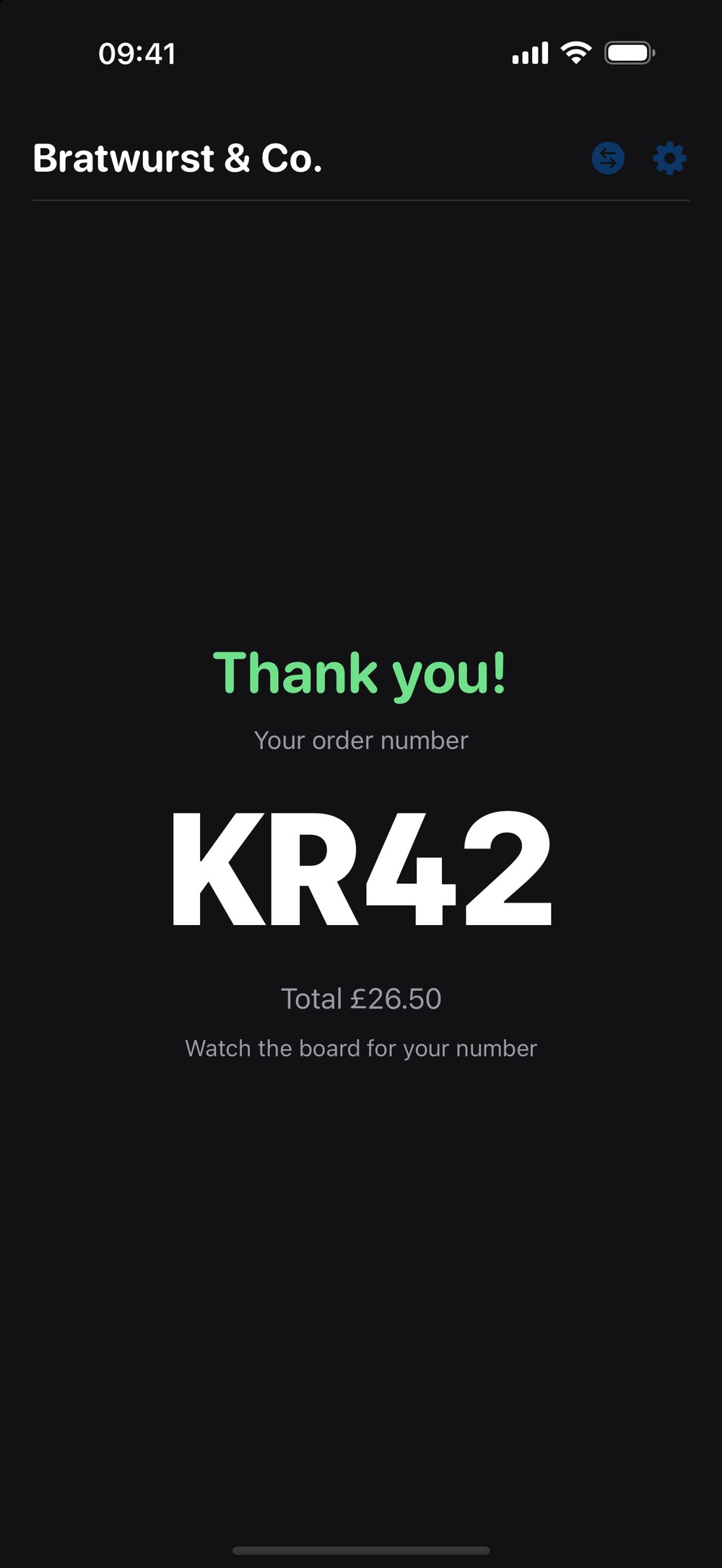
The same display after payment: Thank you, and the order number KR42 in large type
Live, line by lineItems, quantities, extras and “NO onions” changes appear the moment you tap them, and update if you change your mind.
A clear totalThe total is the biggest thing on the screen, and changes to “Please pay” when you take payment.
Their order numberAfter payment it says thank you and shows the order number in big type, then points them to the board.
Allergens in viewEach item shows what it contains, so the customer can spot a problem before they pay.
Your logo and messageShows your logo or stall name, with a thank-you message you write yourself.
Nothing to wire upIt links to the order device like your other screens, with no internet needed.

New · Multiple tills

Two servers.
Two customers. No mix-ups.

Run two order iPads at once, each with its own customer display. Every customer sees only their own order, so one can be served while the other is still choosing.

Till 1

Order iPadServer A
→
Till displayShows till 1

Server A rings in a customer. Their display shows exactly that order and total.

Till 2

Order iPadServer B
→
Till displayShows till 2

Server B serves someone else at the same moment. Neither display ever shows the other’s order.

One shared stall behind themBoth tills feed the same kitchen screen, collection screen, customer board and takings, so nothing is split up or counted twice.
Give each till a numberIn Settings, choose which till an order iPad is, from 1 to 4.
Pair each displaySet each customer display to the till it faces. That’s the whole setup.
Still just one till?Leave everything on 1 and nothing changes. Nothing to configure.

Endlessly yours

Simple on the surface.
Made around your menu.

Sausages, burgers, flat whites or wood-fired pizza. Serving Hatch bends to the way you actually sell.

Every tile, exactly how you want it.

Pick from twelve colours, rename anything, change prices on the fly. Reorder tiles by dragging. Changes reach your other device instantly.

Sold out? One tap.

Grey an item out on every device the moment you run out.

Try it. Tap a tile.

Extras. And “no onions”.

Make an option set once, like “Sausage extras”, and share it across every item that needs it. Extras add to the price. Changes are free and shout from the collection screen.
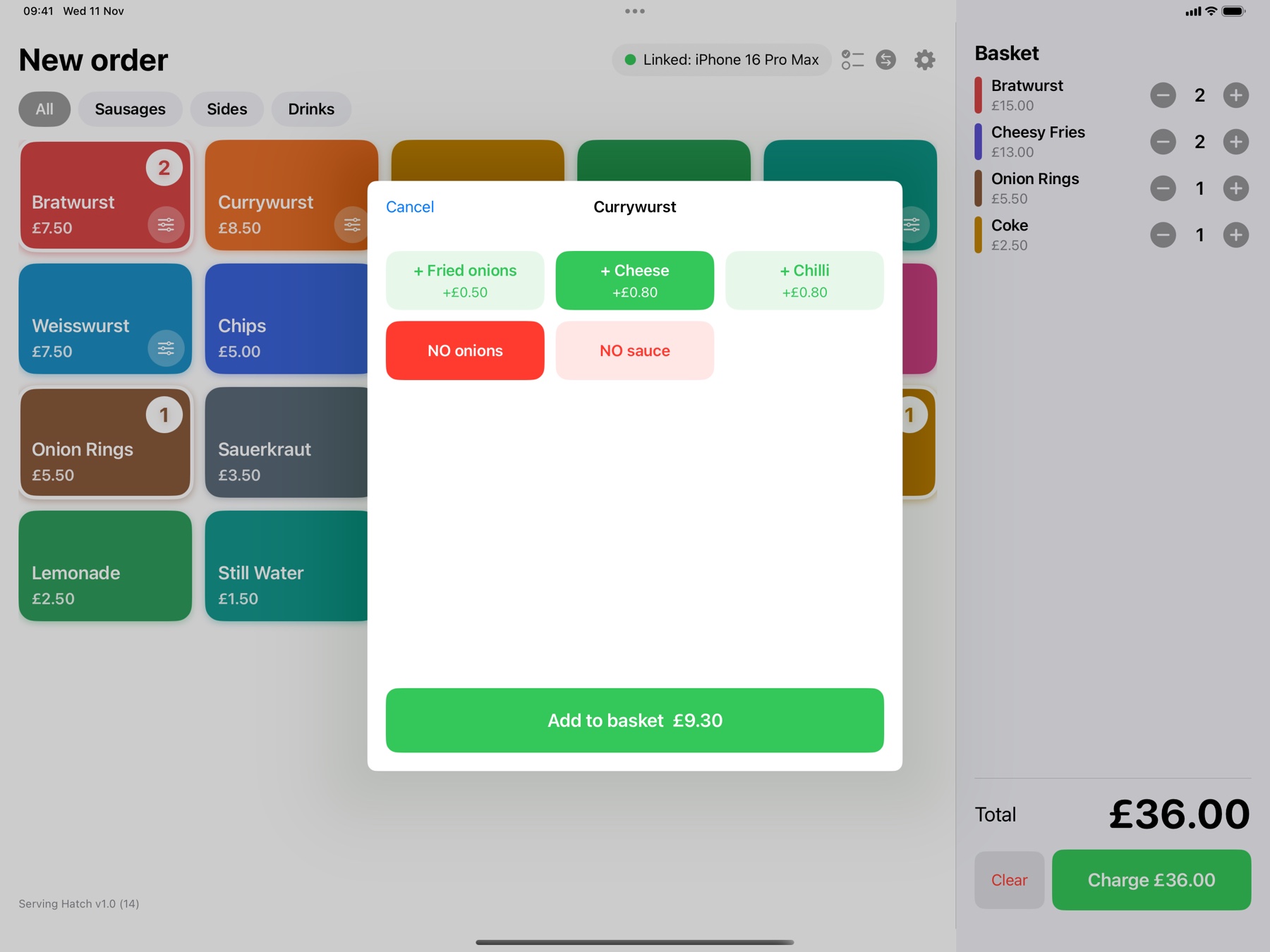
Option sheet with green extras and red NO changes

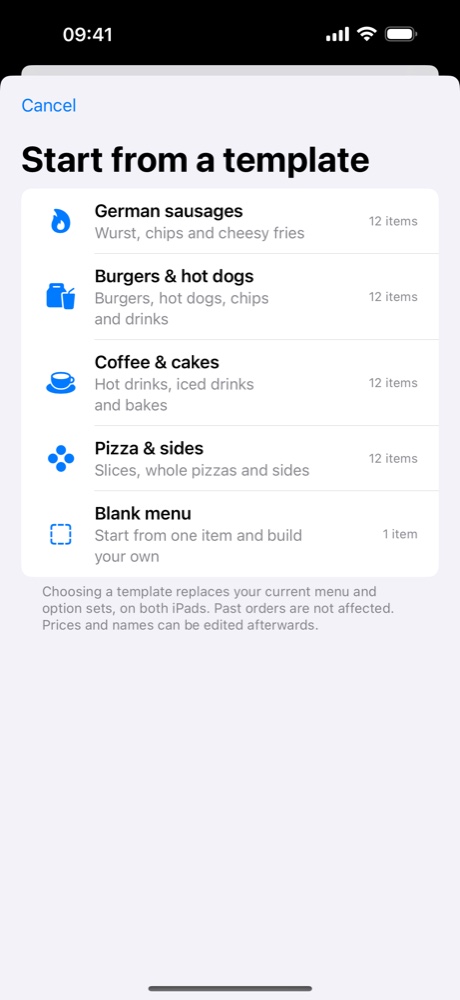
Start from a template.

Sausages, burgers, coffee, pizza or a blank page. Each comes with a ready-made menu and sensible extras. Swap in one tap, then make it yours.

Template picker

Big menu? Split it into tabs.

Group tiles into categories like Sausages, Sides and Drinks. Switch tabs in one tap, and your basket stays put.

Bratwurst£7.50
Currywurst£8.50
Chips£5.00
Cheesy fries£6.50
Coke£2.50
Lemonade£2.50

Try it. Tap a tab.

Kitchen dockets, if you like paper.

Print a docket for each order on a Bluetooth printer: big reference, no prices, every change in capitals.

Your name on every receipt.

Set your stall name once. It prints at the top of receipts and on QR sheets.

Settings you’ll actually understand.

A single, calm screen for your menu, options, receipts, backups and security. No manuals, no jargon.
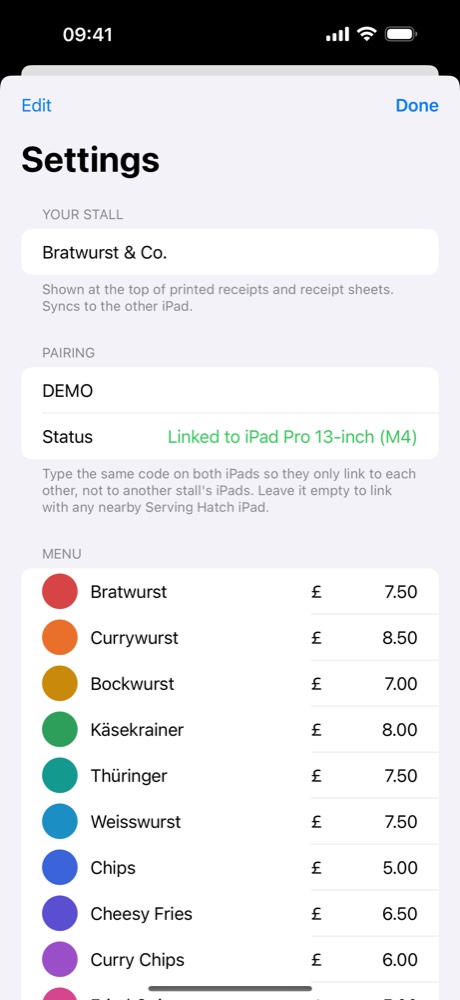
Menu editor
Settings

Seriously capable

Simple to use.
Hugely powerful underneath.

Everything a busy stall needs to run, and to know how the day went, built in.
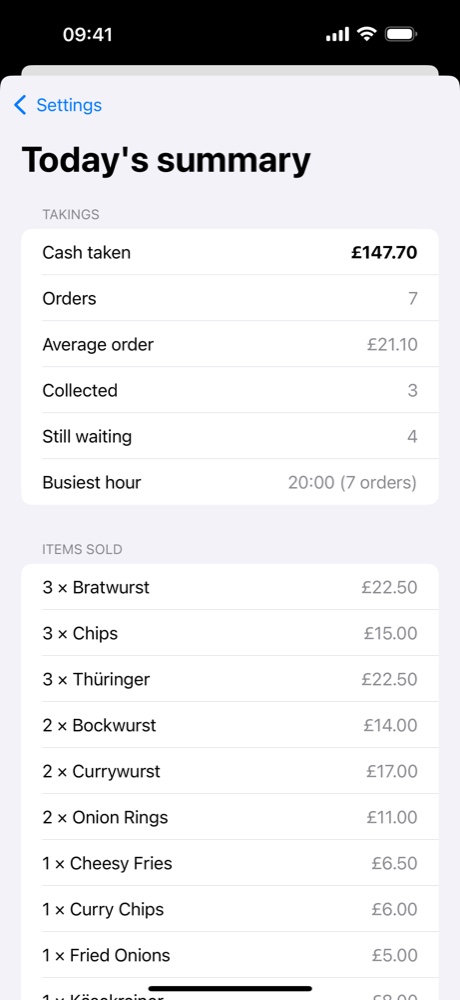
Today's summary with takings and items sold
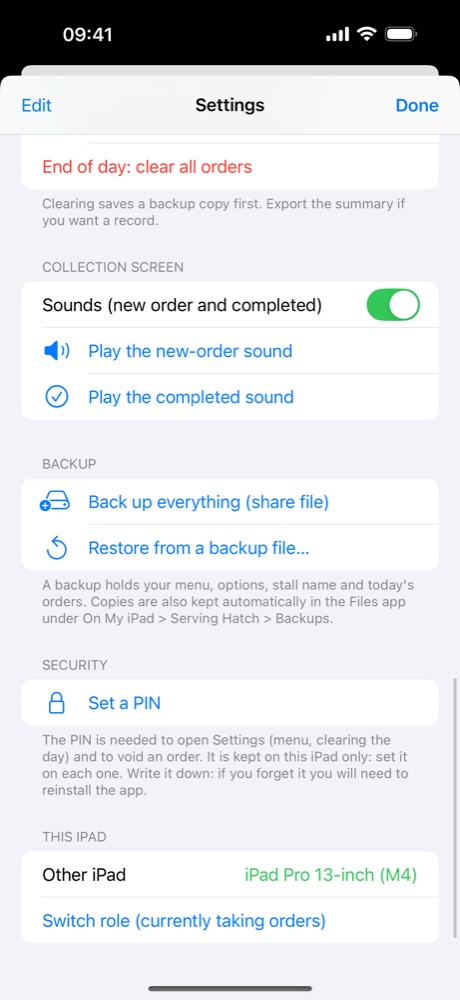
Backup, sounds and security settings
Live takingsCash taken, average order, busiest hour and what’s selling, updated as you go.
CSV exportEvery order or item totals, straight into Numbers, Excel or Sheets.
Voids and refundsCancel a mistaken order. Takings fix themselves, and a voided receipt is flagged at the hatch.
PIN lockKeep prices, refunds and the end-of-day clear to people you trust.
Automatic backupsSaved on the device as you work, and before every end-of-day clear. Restore in a tap.
Receipt printingPrint to a Bluetooth LE thermal printer, or hand out pre-printed QR receipts. Your choice.
QR collectionFour-character references with no look-alike letters, so reading one out is never a guessing game.
Sounds that tell youA bright chime for a new order, a softer one for completed. Even on silent.
Kitchen screenOrders to make, oldest first, with timers and a cook list. One tap marks them ready.
Customer boardA screen for customers showing what’s preparing and what’s ready to collect.
Allergen labelsTag items with the 14 UK allergens. They show on the order screen, receipts, kitchen dockets and the menu board.
Till displayA screen facing the customer shows their order and total as you ring it in.
Multiple tillsRun up to four order iPads, each with its own paired customer display, all sharing one kitchen and takings.
Category tabsSplit a big menu into tabs, and choose which categories go to the kitchen.

For every kind of stall

Whatever you serve,
it fits.

From street food to coffee carts, if you sell things from a hatch, Serving Hatch was made for you.

German sausagesWurst, chips, cheesy fries
Burgers & hot dogsWith every topping option
Coffee & cakesMilk, shots and syrups
Pizza & sidesSlices, whole pies, extras

Pricing

One simple price.
Per venue, per month.

Every feature, every device at your stall, and no cut taken from your sales.

Launch pricing
£15/ month per venue

Billed monthly. Cancel or pause whenever you like.

  • 30-day free trial. Try it on a real service day first.
  • All your devices. Order, collection and a spare phone, all included.
  • Everything unlocked. Options, templates, reports, backups, printing.
  • Pause for the off-season. Pay only for the months you trade.
  • Founding venues keep their price for as long as they stay.
Get early access

Launch pricing is subject to change before sign-ups open. Prices shown are indicative.

No percentage of your salesA flat monthly fee. The more you sell, the more you keep.
No contractMonth to month. Leave any time and export your data on the way out.
Never stops mid-serviceEven if a payment is late, your stall keeps trading. Always.

Tech specs

The details.

Devices
iPad and iPhone. Layouts are designed for both.
Software
iOS and iPadOS 15 or later, so older iPads stay useful.
Connection
Direct device-to-device link over Bluetooth and peer-to-peer Wi-Fi. No router, no internet, no account.
Payments
Cash today, with instant change calculation. Card payments are planned.
Receipts
Bluetooth LE thermal printers, or pre-printed QR receipt sheets you can print from the app.
Menu
Twelve tile colours, category tabs, option sets with paid extras and free changes, ready-made templates, sold-out toggles.
Kitchen
Optional kitchen screen with oldest-first tickets, colour timers, a cook list, and per-category routing. Optional printed dockets.
Menu board
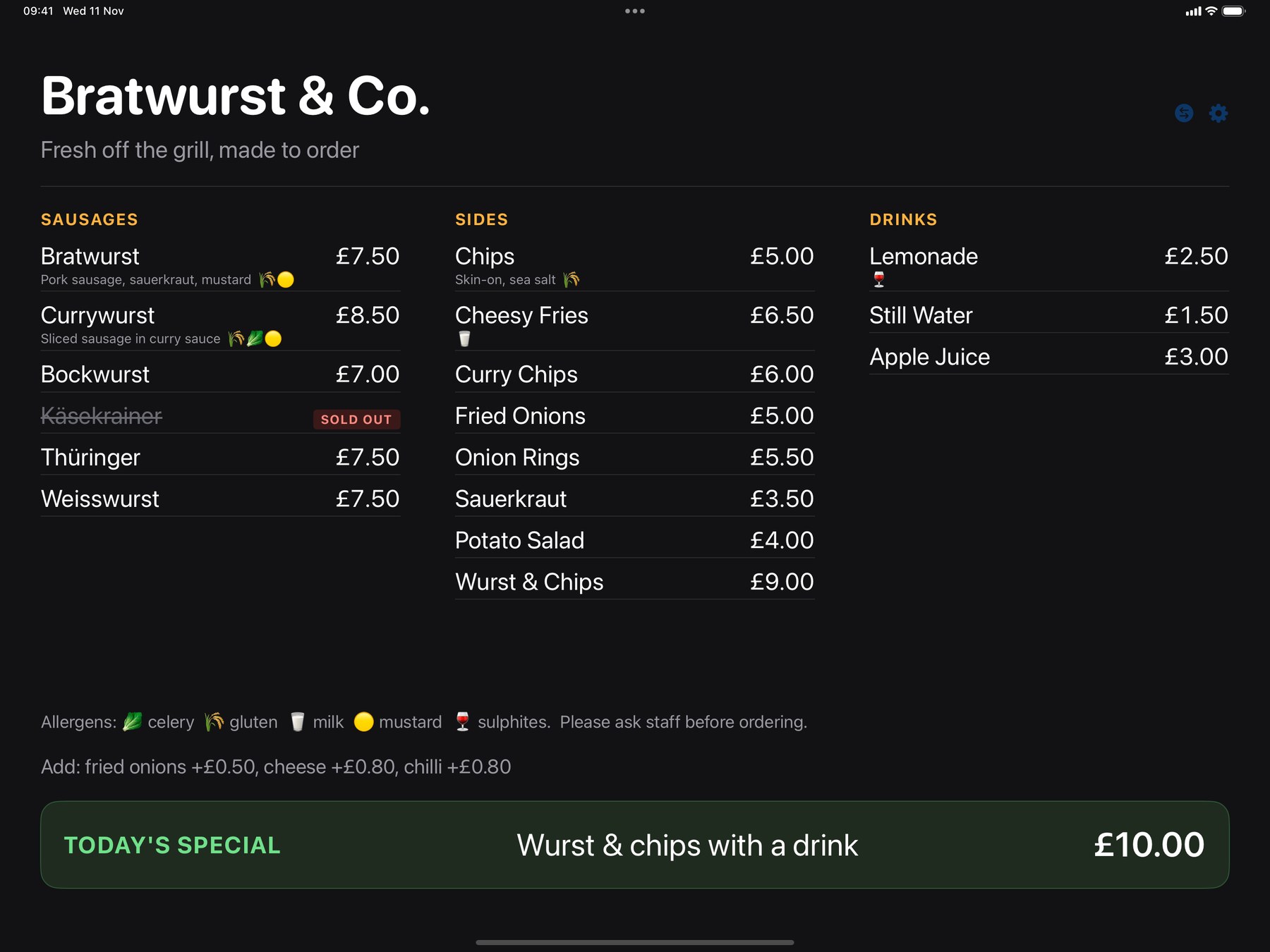
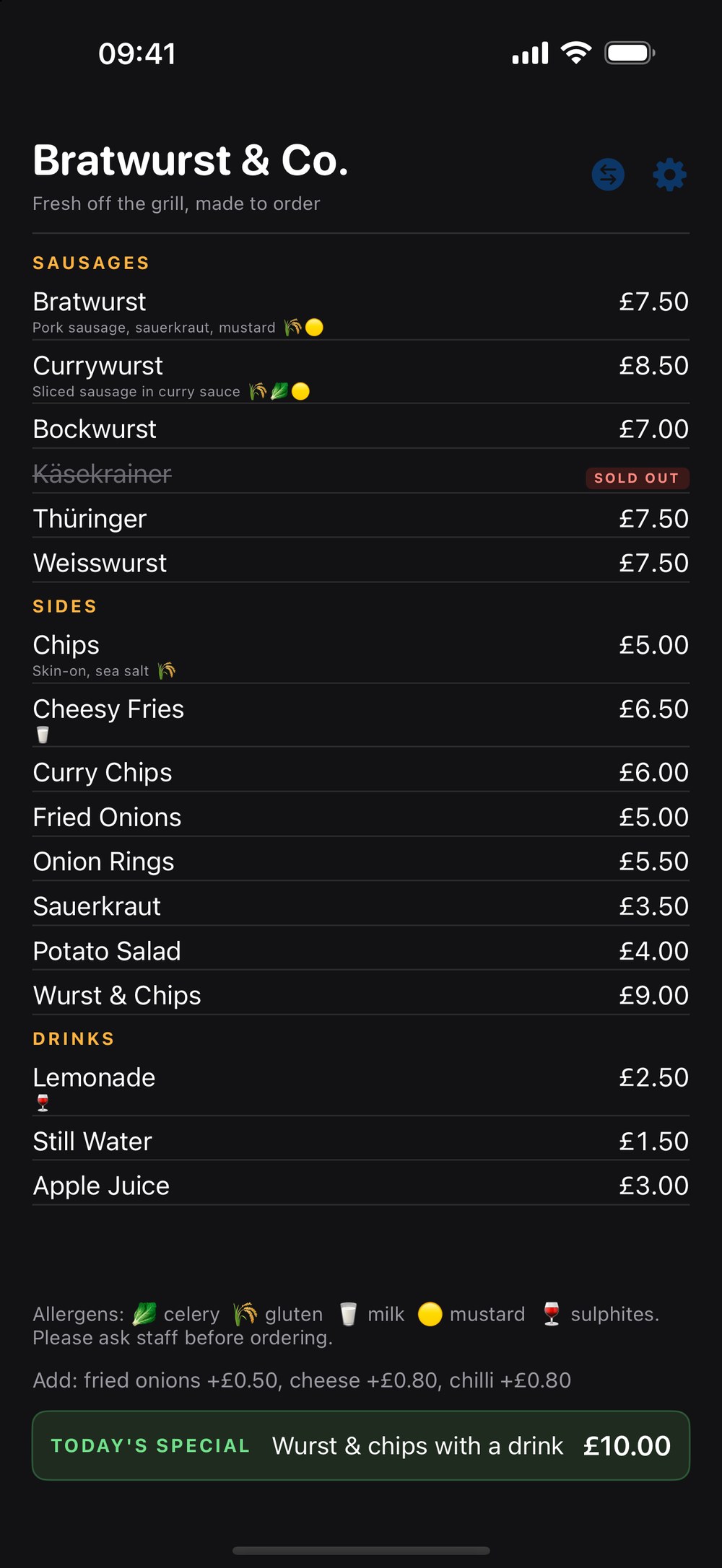
Optional price-list screen built from your menu and categories, with sold-out items struck through, paid extras and a daily special. Long menus turn pages automatically with a fade, categories can show only at set times of day, and items can have descriptions, allergen icons and photos or be hidden from the board. Works in portrait and landscape.
Till display
Optional customer-facing screen on the back of the till. Shows the order line by line as it is rung in, the total, a pay prompt, and the order number after payment. Works in portrait and landscape.
Allergens
The 14 UK allergens can be set on each item. They appear on the order screen, the basket, the collection screen, receipts, kitchen dockets, the till display and the menu board. You are responsible for keeping them accurate.
Multiple tills
Up to four order iPads at once. Give each a till number and set each customer display to the till it faces. Kitchen, collection, board and takings are shared.
Customer board
Optional customer-facing screen with Preparing and Ready columns, a chime, and your own logo and message. Works in portrait and landscape.
Reports
Live takings, items sold, extras, busiest hour, and CSV export.
Your data
Stays on your devices. Automatic local backups, plus share-a-file backup and restore.

Questions, answered.

Do I need an internet connection?

No. Your order device and collection device connect directly to each other, so Serving Hatch works in a field, a car park or a market hall with no signal at all.

What devices do I need?

An iPad or iPhone running iOS 15 or later. Most stalls use two: one to take orders and one at the hatch. You can also use a single device, or an iPhone as the second screen.

How much does it cost?

A flat monthly fee per venue, with every device at your stall included and a 30-day free trial. We don’t take a percentage of your sales. Launch pricing will be confirmed before sign-ups open.

What if I only trade in summer?

You can pause your subscription between seasons and pick it up again when you’re back. Your menu and settings are waiting for you.

How do customers pay?

With cash at launch, and the app works out the change for you. Card payments are on our list for later.

Do I need a kitchen screen?

No. It’s optional. Without one, orders go straight to the collection screen as they always have. Add a third iPad or iPhone as the kitchen screen whenever you want the cook to see what’s next.

Can I show my prices on a screen?

Yes. Set a spare iPad, iPhone or TV to Menu board and it displays your menu with prices, struck-through sold-out items and an optional special. It updates as you edit the menu.

Can customers see their order as I take it?

Yes, with the optional till display. Set a spare iPhone or iPad to Till display and stand it on the back of the till. It shows each item and the total as you tap, then the order number after payment.

Can I run more than one till?

Yes. Give each order iPad a till number in Settings, and set each customer display to the till it faces. Two servers can then serve two customers at once, and each customer only sees their own order. The kitchen, collection screen, board and takings are shared. With one till, leave it all on 1.

Does it help with allergens?

You can tag each item with the 14 allergens UK food businesses must declare. The tags show on the order screen, receipts, kitchen dockets, the till display and the menu board, which makes it easier to tell customers. The information is only as accurate as what you enter, so keep checking your suppliers’ labels. Serving Hatch doesn’t replace your own allergen checks or legal duties.

Do I need a customer board?

No, it’s optional. If you have a spare iPad, iPhone or a TV with an iPad behind it, set it to Customer board and it shows what’s cooking and what’s ready. Customers can see their order number without asking.

Do I need a receipt printer?

No. You can print a sheet of numbered QR receipts from the app and hand one to each customer. If you prefer, connect a Bluetooth LE thermal printer and the app prints a receipt for every order.

Can I change the menu during service?

Yes. Rename items, change prices and colours, and mark things sold out at any point. Changes appear on your other device straight away.

What happens if two stalls are close together?

Give your devices a stall code in Settings. Only devices with the same code will link, so you’ll never pair with someone else’s iPad.

Is my data safe?

Your orders and menu stay on your own devices. Backups are saved automatically and you can restore from one whenever you need to.
Serving Hatch app icon

Ready when you are.

Sign-ups and pricing are coming soon. Your stall’s next busy day could be your easiest.
Sign-ups opening soon